📸 Photo Booth
Take a photo strip with your webcam — pick a layout, shoot your strip, then choose a filter before you download. Free, no sign-up, no watermark.
Step 1
Choose your layout
What is Cutiora Photo Booth?
Cutiora Photo Booth is a free online photo booth that turns your webcam into a real photo strip machine — no app, no sign-up, and no software to install. It's built for anyone searching for a free photobooth online, a quick photo strip maker, or a webcam photo booth they can use in seconds: pick a layout, and the tool captures your photos automatically with a countdown, just like the photo booths at malls, arcades, and photo studios — then choose one of 50+ aesthetic filters afterward, so you can compare looks side by side instead of guessing beforehand. Don't have a camera handy, or prefer not to use one? Upload photos instead and they'll be arranged into the exact same strip or grid.
Once your strip is ready, Cutiora Photo Booth doubles as a lightweight photo strip editor: change the filter or the frame color without retaking a single shot, add custom text, drop in stickers, or draw by hand — all before you download. It's the same idea as a classic 4-cut photo booth or a Life4Cuts-style photostrip, but private (your photos never leave your device), unlimited, and completely free.
Choose a layout: Classic Layouts vs. Frame Templates
Step 1 is where you pick how your photo strip looks. Cutiora Photo Booth gives you two paths:
- Classic Layouts — the traditional photo booth formats: a single photo, a 3-shot strip, a 4-shot strip, or a 2×2 photo grid. Each one has a clean, solid-colored border you can fully customize later with the Frame Color tool. This is the closest thing to a real photo booth strip or a Life4Cuts photostrip, and it's the fastest option if you just want a classic, no-fuss photo strip maker.
- Frame Templates — designed, ready-made frames with their own artwork, colors, and theme baked in, for an instant aesthetic photo booth look without any manual decorating. Browse by category: Vintage Cuts (Vintage Lace, Lace & Ribbon), Cute Cuts (Strawberry Cats), Café Vibes (Café Date), Disco Nights (Disco Camera), and Birthday (Happy Birthday Scrapbook) — more templates are added regularly.
Every button in Cutiora Photo Booth, explained
Cutiora Photo Booth has grown from a simple webcam photo strip maker into a small photo editor built right into the same page. Here's exactly what each button does, step by step:
- 📸 Start — begins the automatic capture sequence. Cutiora Photo Booth counts down before each shot and snaps your photos on its own, just like a real photo booth machine, so you don't have to click a shutter button for every frame.
- or upload — switches from webcam capture to file upload, for anyone without a camera, without camera permissions, or who simply wants to turn existing pictures into a photo strip.
- 🎨 Change Filter (Step 3) — pick any of 50+ aesthetic filters on your finished strip — trending looks like CCD Digicam, Disposable, Teal & Orange, Coquette, 2016 Vibe and Halation, plus classics like Y2K, VSCO, Vaporwave, Webcore, Vintage and Dreamy. Because Cutiora Photo Booth keeps your original, unedited shots in memory, switching filters here is instant and never requires retaking your photos.
- 🖼 Frame Color (Step 3, Classic Layouts only) — a color picker for the border/background of a Classic Layout strip, so you're never stuck with a plain white frame. Pick any color to match your aesthetic, your event, or your mood board. (Frame Templates already have their own designed colors, so this button only appears for Classic Layouts.)
- 🔤 Add Text — places editable text directly on your photo strip. Pick a font — Fredoka, Nunito, Courier New, Impact, or Times New Roman — set the size, color, and an optional bold outline, then drag, resize, and rotate it exactly where you want. Add as many text layers as you like — perfect for captions, dates, names, or inside jokes.
- 🎉 Stickers — opens a searchable sticker picker across 6 categories: Food, Love, Y2K, Alphabet, Cute, and Study. Tap any sticker to drop it onto your strip, then drag, resize, rotate, or flip it. Add as many stickers as you want to decorate your photo booth strip like a real sticker-covered photostrip.
- ✏ Draw — a freehand drawing tool with a brush, an eraser, and a fill (bucket) tool, plus adjustable brush size, color, and opacity. Great for doodles, handwritten notes, circling a face in the group photo, or adding a signature touch.
- 🔄 Start over — clears everything (photos, filter, frame color, text, stickers, and drawings) and sends you back to Step 2 to shoot a brand-new strip from scratch.
- ⬇ Download — saves your finished photo strip as an image file, with every edit (filter, frame color, text, stickers, and drawings) baked in — free, instant, and with no watermark.
How to use Cutiora Photo Booth: step-by-step
- Step 1 — Choose your layout. Pick a Classic Layout (single shot, 3-photo strip, 4-photo strip, or 2×2 grid), or browse Frame Templates for a designed, ready-made look.
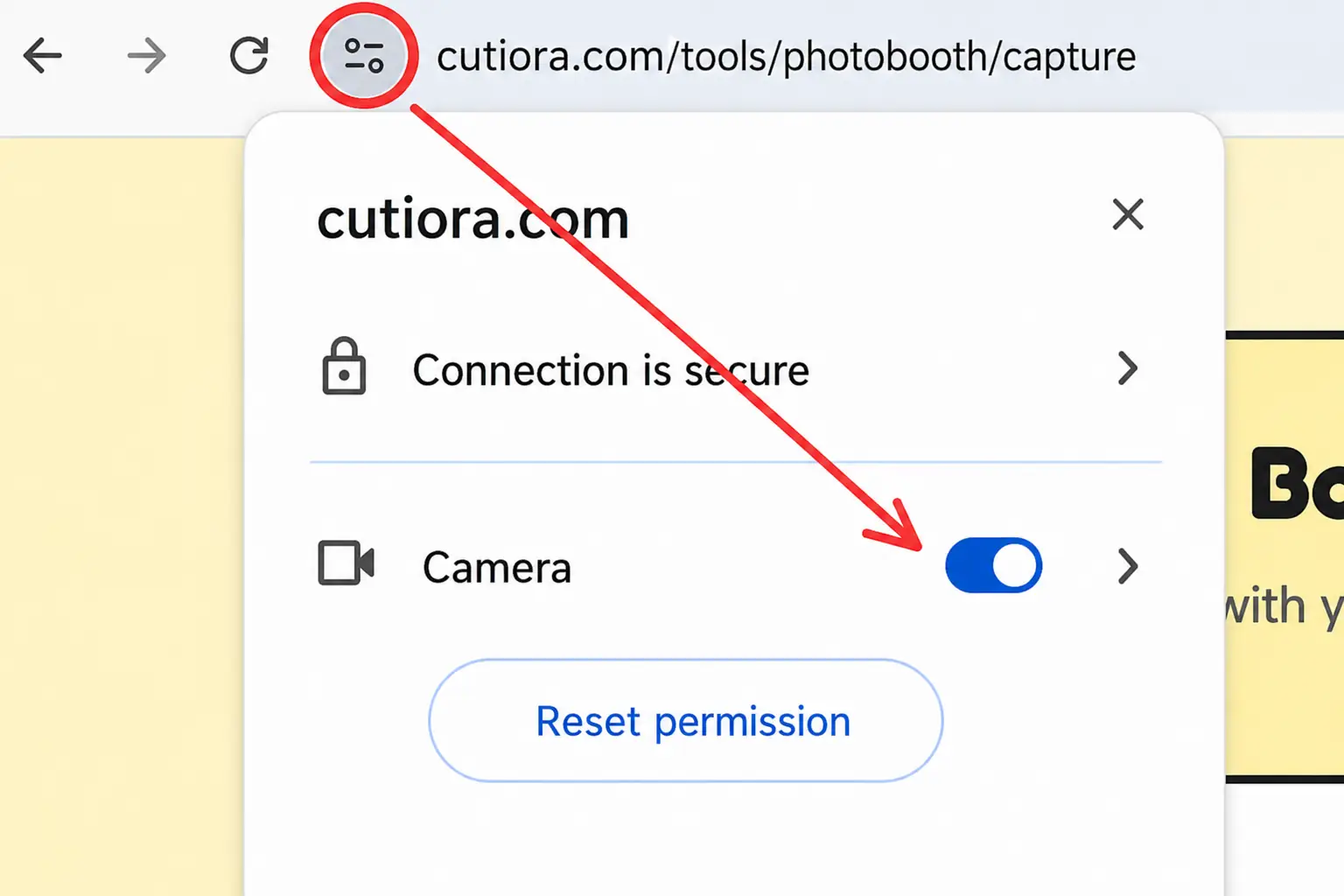
- Step 2 — Take or upload. Allow camera access (or tap "or upload" if you'd rather use existing pictures), and tap 📸 Start. Cutiora Photo Booth counts down and captures each shot automatically.
- Step 3 — Edit. Your strip is ready. From here you can tap 🎨 Change Filter to pick one of 50+ aesthetic looks, 🖼 Frame Color to recolor the border (Classic Layouts), 🔤 Add Text to caption it, 🎉 Stickers to decorate it, or ✏ Draw to doodle on it — mix and match as many of these as you like.
- Step 4 — Download or start over. Happy with it? Tap ⬇ Download to save your photo strip instantly. Not quite right? Tap 🔄 Start over to begin again with a fresh set of photos.
More Free Photo Tools
Want to edit a single photo instead of a strip? Open the full Cutiora photo editor for text, aesthetic symbols, kaomoji faces, stickers, and drawing — or try the Aesthetic Photo Filters tool on its own. See everything on the Tools page.
Privacy: your photos never leave your device
Your camera feed and your photos are processed entirely on your own device, from the first countdown to the final download. Nothing is uploaded to a server, nothing is stored by Cutiora, and there's no account or sign-up that could tie a photo strip back to you. If you're searching for a private online photo booth, an offline-feeling photobooth-online tool, or simply a webcam photo strip maker you can trust with candid photos, this is built for exactly that. Read our full Privacy Policy for details.
Frequently Asked Questions
Is Cutiora's photo booth really free?
Yes — completely free, with no sign-up and no watermark on your downloaded photo strip.
Do I need a webcam?
No. If you don't have a camera or prefer not to use one, you can upload photos instead and they'll be arranged into the same strip or grid.
Does my photo get uploaded anywhere?
No. Every photo is captured and processed locally on your own device. Nothing is uploaded to a server.
Can I use this on my phone?
Yes, it works on any modern phone, tablet, or computer browser with a camera — no app needed.
What is Life4Cuts (Life Four Cuts)?
Life4Cuts (Life Four Cuts) is a popular Korean self-photo studio style where you take four photos in a row and get them as one vertical strip. Cutiora is not affiliated with any photo studio, but its 4-shot Classic Layout gives you the same kind of four-cut photo strip, free and right in your browser.
Can I use the photo booth on my laptop?
Yes. Open it in Chrome, Edge, Safari, or Firefox on a laptop or desktop, allow camera access, and your built-in or USB webcam works as the photo booth — no app or download needed.
Can I add text or stickers to my photo strip?
Yes. Once your strip is ready, use the 🔤 Add Text and 🎉 Stickers buttons to place custom text and stickers directly on your photo — drag, resize, and rotate each one before downloading.
What stickers can I add to my photo strip?
Food, Love, Y2K, Alphabet, Cute, and Study stickers — hundreds in total, across 6 searchable categories.
Which filters can I use in the photo booth?
50+ aesthetic looks — trending looks like CCD Digicam, Disposable, Teal & Orange, Coquette, 2016 Vibe and Halation, plus classics like Y2K, VSCO, Vaporwave, Webcore, Vintage and Dreamy — pick one with Change Filter after your strip is captured.
Can I draw on my photo strip?
Yes. The ✏ Draw tool gives you a brush, an eraser, and a fill tool with adjustable size, color, and opacity, so you can doodle or write by hand directly on your finished strip.
Can I change the filter or frame color after taking my photos?
Yes. On the results screen, use 🎨 Change Filter to try a different aesthetic filter, or 🖼 Frame Color (for Classic Layouts) to change the border color — both update your strip instantly without retaking your photos.
What's the difference between a Classic Layout and a Frame Template?
A Classic Layout is a plain single shot, photo strip, or 2×2 grid with a simple colored border you can customize. A Frame Template is a designed, ready-made frame with its own artwork and theme for an instant aesthetic look.