🎀 Frame Maker: Make Your Own Photo Frame
Turn any picture into a frame, or start from a cute shape. Add up to 6 photo holes, decorate your frame, and download it as a transparent PNG. Free, no sign-up, no watermark.
Step 1
Start your frame
Upload a photo, or pick a shape and design your frame from scratch.
Draw the outline of your frame with your finger, then lift it.
What is Cutiora Frame Maker?
Cutiora Frame Maker is a free online frame maker that lets you create your own photo frames. Here, a frame is a picture with empty spaces where your photos show through. Start with your own picture, such as a cartoon character, a teddy bear or a piece of cute paper. Or choose a shape, like a heart, a cloud or a scallop. Then add 1 to 6 photo holes in 20 shapes, or draw your own.
When your frame is ready, download it as a transparent frame PNG, or save it to use again in our Shape Frames and Collage Maker. Make your frame right in your browser, on your phone, tablet or computer. No app or account is needed, and your downloads have no watermark. Your photos stay on your device while you edit.
Two ways to start
| From a picture | From a shape | |
|---|---|---|
| You start with | A picture from your phone or computer | Square, rectangle, stamp, arch, oval, circle, heart, scallop, cloud or flower, or a shape you draw |
| First step | Remove the background, or keep the whole picture | Choose a colour or a cute pattern |
| Photo holes | 1 to 6 | 1 to 6 |
| Decorate with | Stickers, text, a filter and drawings | Stickers, text, a filter and drawings |
| Good for | Character frames, teddy bear frames, paper and lace frames | Simple, cute frames in your favourite colours |
How to make your own photo frame
- Start your frame. Tap Upload a photo to start with a picture, or choose a ready-made shape. You can also tap Draw your own to create a shape.
- Clean up your picture (only if you started from a picture). Tap Remove background, or erase the parts you do not want by hand. Then tap Next step.
- Add photo holes. In the Photo holes tab, tap a shape such as a heart, a star or a circle. It appears on your frame as a grey hole.
- Place each hole. Move it with your finger. Use the corners to make it bigger or smaller and to turn it, and use ↔ and ↕ to make it wider or taller.
- Try a preview photo (if you like). Tap a grey hole and choose a photo to see how your frame looks.
- Decorate it. Add stickers, text, a filter or a drawing.
- Save it. Tap Download to get a PNG picture, or Save to my frames to use it again in Shape Frames and Collage Maker.
Turn any picture into a frame
Upload a picture and tap Remove background. With one tap, the tool tries to find the main subject in your picture and remove the background around it. The first time you use it, your browser downloads about 15 MB of background-removal tools. After that, your picture is cut out right on your device; the time depends on your device and your picture. You can also keep the whole picture, or clean it up by hand:
- Erase and Restore — brush over the parts you want to remove or bring back.
- Lasso — draw around a part to keep it or remove it.
- Magic — tap an area of the same colour to remove it or bring it back.
- Crop — keep only part of the picture, freely or as a square, 4:5, 9:16 or 16:9.
- Smooth edges, Undo, Redo and zoom, for small details.
Please only use pictures you made yourself or are allowed to use.
Or start from a cute shape
Choose from 10 shapes: a square, rectangle, stamp, arch, oval, circle, heart, scallop, cloud or flower. Your frame opens on the Background tab, where you can choose any colour or more than 70 cute patterns, like gingham, hearts, bows, stars and flowers, and change their colours. Want a shape that is not in the list? Tap Draw your own.
Photo holes: 20 shapes, or draw your own
A photo hole is an empty space in your frame where a photo shows through. Each frame can have from 1 to 6 holes. Choose from 20 shapes, like a circle, a heart, a star, a bow, a butterfly or a cat, or search for one by name. Tap a hole to select it:
- Move hole — drag it anywhere. Use the corners, or two fingers, to make it bigger or smaller and to turn it.
- ↔ and ↕ — stretch the hole to make it wider or taller. For example, turn a circle into an oval, or make a heart wider or taller.
- Add photo — preview your frame with a photo in the hole. First choose the part of the photo you want to show, then try any of the 82 filters.
- Adjust photo — move or zoom the photo inside the hole.
- Delete a hole with the × on its corner.
Draw your own shape
Tap Draw your own to make your own frame shape or your own photo hole. There are two ways:
- Draw by hand — draw an outline with your finger. When you lift it, the line becomes a smooth shape with points you can move.
- Shape with points — start with four points in a square.
Then drag the points to change the shape, or drag inside it to move it. Tap a + on a side to add a point there. Tap a point to make it round or sharp, or to delete it. Nothing is used until you tap Use this shape, so you can try again as many times as you like.
Decorate your frame
- Stickers: cute stickers in many groups, like love, cute, bows and lace, flowers, Y2K, food, study, buttons and letters, plus the stickers you made yourself.
- Text: write anything in 6 fonts, choose its colour and outline, and add kaomoji like (。•́‿•̀。) or aesthetic symbols like ✦ and ♥.
- Filter: give your frame a new look with 82 filters and sliders for the light and the colours. The filter changes the frame only, never the photos in it, and the holes stay see-through.
- Draw: draw hearts, sparkles or your name with 8 brush styles. You can draw anywhere, even over a photo hole. If you add a photo there later, your drawing stays on top.
- Layers: choose which sticker, text or drawing is in front and which is behind.
- Undo and Redo: go back or forward at any time.
Download a transparent frame PNG
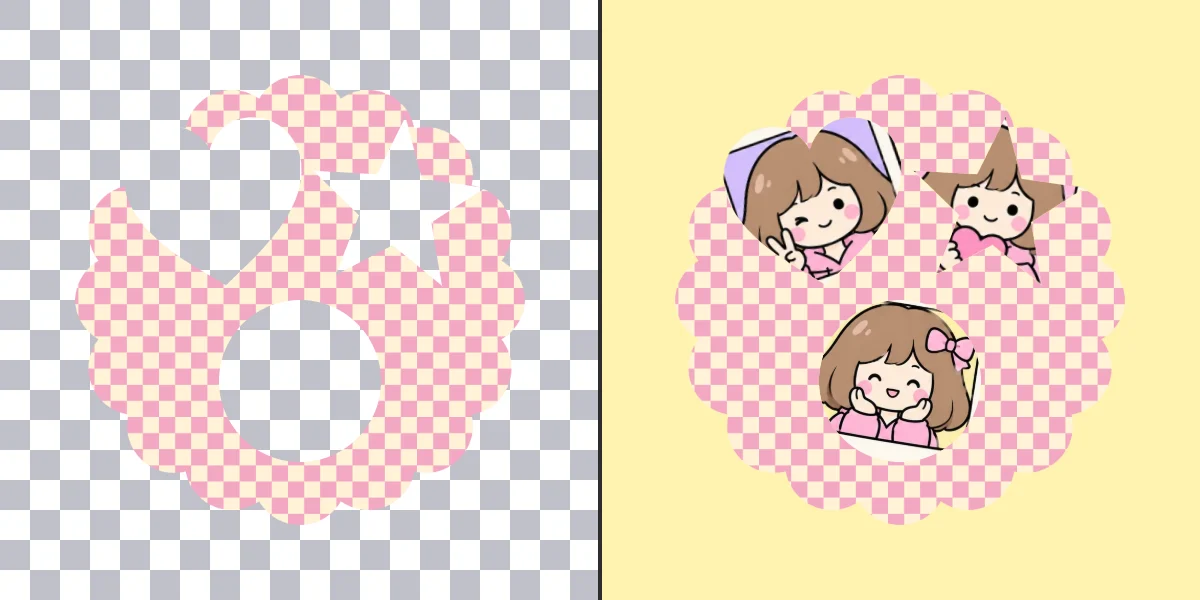
Tap Download to save your frame as a PNG picture, up to 1600 pixels on its longest side. Your PNG has transparent areas: the photo holes you left empty, and the space around a picture after you remove its background. These areas have no background colour, so when you put the frame over a photo in another app, the photo shows through the holes.
Photo holes with a preview photo keep that photo in the downloaded PNG. If any holes are empty, the tool asks you first: choose Add photos, or Download anyway to leave them transparent.
Save your frame and use it again
Tap Save to my frames, give your frame a name and choose where you want it: Shape Frames, Collage Maker or both. Your frame is saved without the preview photos, so you can add different photos whenever you use it again:
- In Shape Frames, your frame comes first in the list of shapes. Put it on top of a photo, move it, and fill its holes with other photos.
- In Collage Maker, open the Frames tab and add your frame to a collage.
You can save up to 30 frames on this device. They stay in your browser, so clearing your browser data deletes them. Download a PNG copy of your favourite frames to keep them safe.
Frame ideas
- A teddy bear frame with a heart-shaped hole for a photo of you and your best friend.
- A lace or scrapbook frame: use a picture of lace, washi tape or decorated paper, then add round photo holes.
- A Polaroid-style frame: a white rectangle with a square photo hole and a little space under it for your text.
- A birthday frame with stickers, a “Happy Birthday” title and 3 star-shaped holes.
- A cloud or scallop frame in pastel colours for a soft, kawaii look.
- A frame for your favourite character made from a picture you drew yourself.
Why use Cutiora Frame Maker?
Cutiora Frame Maker is completely free, with no subscription and nothing to unlock. Make your frame right in your browser on an iPhone, an Android phone, a tablet or a computer. There is no sign-up, no app to install and no watermark on your downloads. Your photos stay on your device while you edit. Background removal only cuts out your picture: it never retouches or reshapes a face. You choose every hole, colour and sticker.
More Free Photo Tools
Put photos inside hearts and other shapes with Shape Frames, make scrapbook-style collages with the Collage Maker, turn a picture into a sticker with the Sticker Maker, add text and stickers in the Cute Photo Editor, give your photos a new look with Aesthetic Photo Filters, take photo strips with the Photo Booth, add a cute circle border to your profile picture with the PFP Border Maker, or see every tool on the Tools page.
Frequently Asked Questions
Is Cutiora Frame Maker free?
Yes, completely. Every shape, pattern, sticker and filter is free, and you can download as many frames as you like without paying anything. There is no subscription and nothing to unlock.
Do I need to sign up or install an app?
No. Open the page and start right away, on your phone or computer. There is no account, no email and nothing to install.
Can I turn my own picture into a photo frame?
Yes. Tap Upload a photo and choose a picture from your device. Remove its background, keep the whole picture or erase parts by hand, then add photo holes. Please only use pictures you made yourself or are allowed to use.
How do I make a frame PNG with transparent holes?
Add photo holes to your frame and leave them empty. Tap Download and choose Download anyway. Your PNG will have transparent holes, so a photo under the frame shows through them.
How many photos can one frame hold?
From 1 to 6. Choose from 20 hole shapes or draw your own, and move, resize, turn and stretch each hole.
Can I make a frame without a picture?
Yes. Pick a shape like a heart, a cloud or a flower, or draw your own, then choose a colour or a cute pattern for it.
Will my frame have a watermark?
No. Cutiora never adds a watermark or logo to your pictures.
Can I use my frame again later?
Yes. Tap Save to my frames to keep up to 30 frames on this device. Your frame appears first in the list of shapes in Shape Frames and in the Frames tab of Collage Maker, ready for new photos.
Are my photos uploaded anywhere?
No. Your pictures and photos stay on your device while you edit. Remove background works on your device too: the first time you use it, your browser downloads about 15 MB of background-removal tools from Cutiora.
Does it work on my phone?
Yes, on iPhone and Android, right in your browser. Use one finger to move things and two fingers to make them bigger, smaller or turn them. iPhone photos work too.